Blog
convert multiple images to pdf without size limit

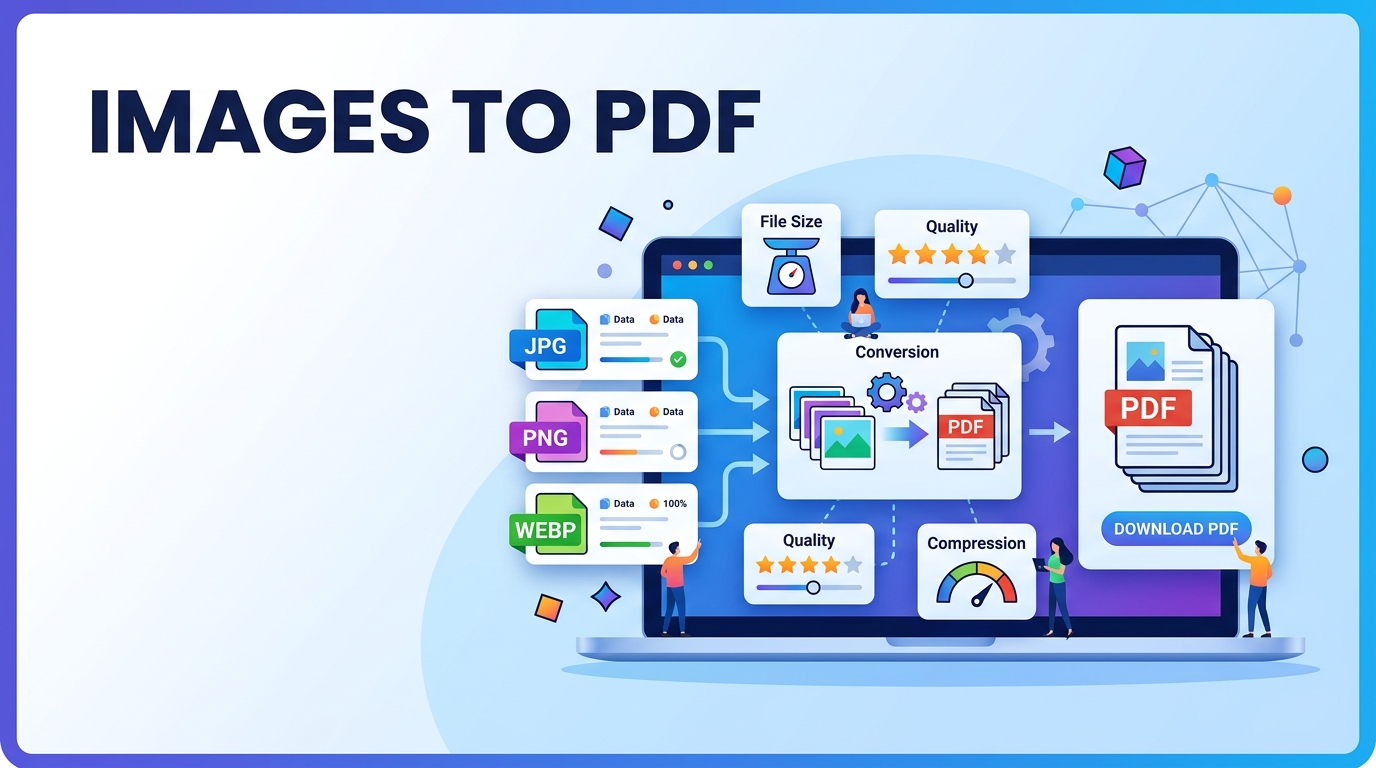
Have you ever tried converting multiple images into a PDF, only to be stopped by a file size limit? It’s a common problem. You select 20–30 photos, scanned documents, certificates, or screenshots, upload them to an online converter, and suddenly see a message saying the file is too large or that you need to upgrade to a paid plan.
This is exactly why people search for ways to convert multiple images to PDF without size limit.
Whether you’re submitting documents for a job application, sending project files to a client, uploading study notes, or organizing personal records, combining images into a single PDF can make everything easier. The challenge is finding a tool that doesn’t force you to reduce quality or split your files into smaller batches.
In this guide, we’ll look at why people convert images to PDF, the benefits of using a no-size-limit converter, and what features matter most when choosing a tool.
Why Do People Convert Multiple Images to PDF?
Images are great for viewing, but they can become difficult to manage when you have dozens of them.
Imagine you have:
- 35 pages of handwritten notes
- 20 scanned business documents
- 50 product photos
- Multiple screenshots for a report
Sending these as individual image files is messy. A single PDF keeps everything organized and makes sharing much simpler.
That’s why PDF remains one of the most widely used document formats for both personal and professional work.
The Biggest Problem With Most Online Converters
Many image-to-PDF tools advertise free conversion, but they often come with restrictions such as:
- Maximum upload size limits
- Limited number of images
- Reduced image quality
- Watermarks on the final PDF
- Daily conversion limits
For users working with high-resolution images, these restrictions can become frustrating very quickly.
A converter without size limits removes these obstacles and allows you to process large image collections without constantly worrying about file restrictions.
Situations Where a No Size Limit Converter Is Useful
Students
Students often need to upload assignments, project reports, handwritten notes, and practical files.
Instead of uploading dozens of images separately, they can combine everything into one PDF document.
Job Applications
Many recruitment portals require a single PDF containing:
- Resume
- Certificates
- Identity proof
- Supporting documents
Combining all files into one PDF makes the application process smoother.
Businesses
Companies frequently handle:
- Invoices
- Purchase orders
- Contracts
- Receipts
Keeping these records in PDF format helps maintain better organization.
Personal Document Storage
People also use image-to-PDF converters to store:
- Medical records
- Property documents
- Insurance papers
- Educational certificates
A single PDF is easier to back up and retrieve when needed.
How Image to PDF Conversion Works
The process is simpler than most people think.
When you upload multiple images, the converter places each image onto a separate PDF page. The images are then arranged according to the order you choose before generating the final document.
A typical workflow looks like this:
- Upload images
- Arrange page order
- Generate PDF
- Download the final file
Most modern tools complete this process within seconds.
Benefits of Converting Multiple Images Into One PDF
Better File Management
Instead of storing dozens of image files, you only need to manage a single PDF document.
Easier Sharing
One PDF attachment is far more convenient than sending 30 separate images through email or messaging apps.
Professional Appearance
PDF documents look cleaner and more organized, especially when shared with clients, employers, or institutions.
Print-Friendly Format
Printing a PDF is usually more straightforward than printing individual images.
Cross-Device Compatibility
PDF files open consistently across Windows, macOS, Android, iPhone, and Linux devices.
What Features Should You Look For?
Not every image-to-PDF converter offers the same experience.
Here are some useful features to consider:
Unlimited File Size Support
Large image collections should be processed without forcing you to compress files first.
Multiple Format Support
A good converter should support:
- JPG
- JPEG
- PNG
- WEBP
- GIF
- BMP
Drag-and-Drop Upload
This makes file selection faster and more convenient.
Image Reordering
Users should be able to rearrange images before creating the PDF.
Quality Preservation
The converter should maintain image clarity and avoid excessive compression.
Privacy Protection
For sensitive documents, local processing or automatic file deletion is important.
Tips for Creating Better PDFs
Arrange Images Before Uploading
Check the sequence of your images before conversion to avoid page order mistakes.
Use Clear Source Images
The quality of the final PDF depends heavily on the quality of the uploaded images.
Remove Unnecessary Files
Avoid including duplicate or irrelevant images.
Verify Orientation
Ensure portrait and landscape images appear correctly before downloading the PDF.
Common Issues and Their Solutions
PDF File Becomes Too Large
If the final PDF is extremely large, consider:
- Reducing image resolution slightly
- Removing duplicate images
- Compressing images before conversion
Images Appear Out of Order
Most converters allow manual sorting. Always verify the page order before generating the PDF.
Blurry Output
Use original images whenever possible instead of screenshots or compressed copies.
Upload Errors
These usually occur due to:
- Browser issues
- Poor internet connection
- Unsupported image formats
Trying a different browser often resolves the problem.
Image Files vs PDF Files
When dealing with multiple documents, PDF has several advantages over individual image files.
| Feature | Images | |
|---|---|---|
| Multiple Pages | No | Yes |
| Easy Sharing | Limited | Excellent |
| Professional Format | Moderate | High |
| Printing Convenience | Average | Excellent |
| File Organization | Difficult | Easy |
For document-related tasks, PDF is usually the more practical choice.
Final Thoughts
The ability to convert multiple images to PDF without size limit is useful for students, professionals, businesses, and anyone who regularly works with large collections of images.
Instead of struggling with upload restrictions, image compression, or file quantity limits, a reliable converter lets you combine everything into a single organized PDF while preserving image quality.
Whether you’re merging scanned documents, photographs, certificates, invoices, or study materials, a no-size-limit image-to-PDF converter can save time, reduce hassle, and make document management much more efficient.
Frequently Asked Questions
Can I convert hundreds of images into one PDF?
Yes. A converter without file quantity restrictions can combine hundreds of images into a single PDF.
Will image quality decrease after conversion?
Not necessarily. Quality depends on the converter and its compression settings.
Can PNG files be converted to PDF?
Yes. Most converters support PNG, JPG, JPEG, WEBP, GIF, and BMP formats.
Is it possible to reorder images before creating the PDF?
Most modern tools allow drag-and-drop sorting before conversion.
Can I use an image-to-PDF converter on mobile devices?
Yes. Most browser-based converters work on Android phones, iPhones, tablets, and desktop computers.