Blog
Create Website Favicon by Converting Image to ICO

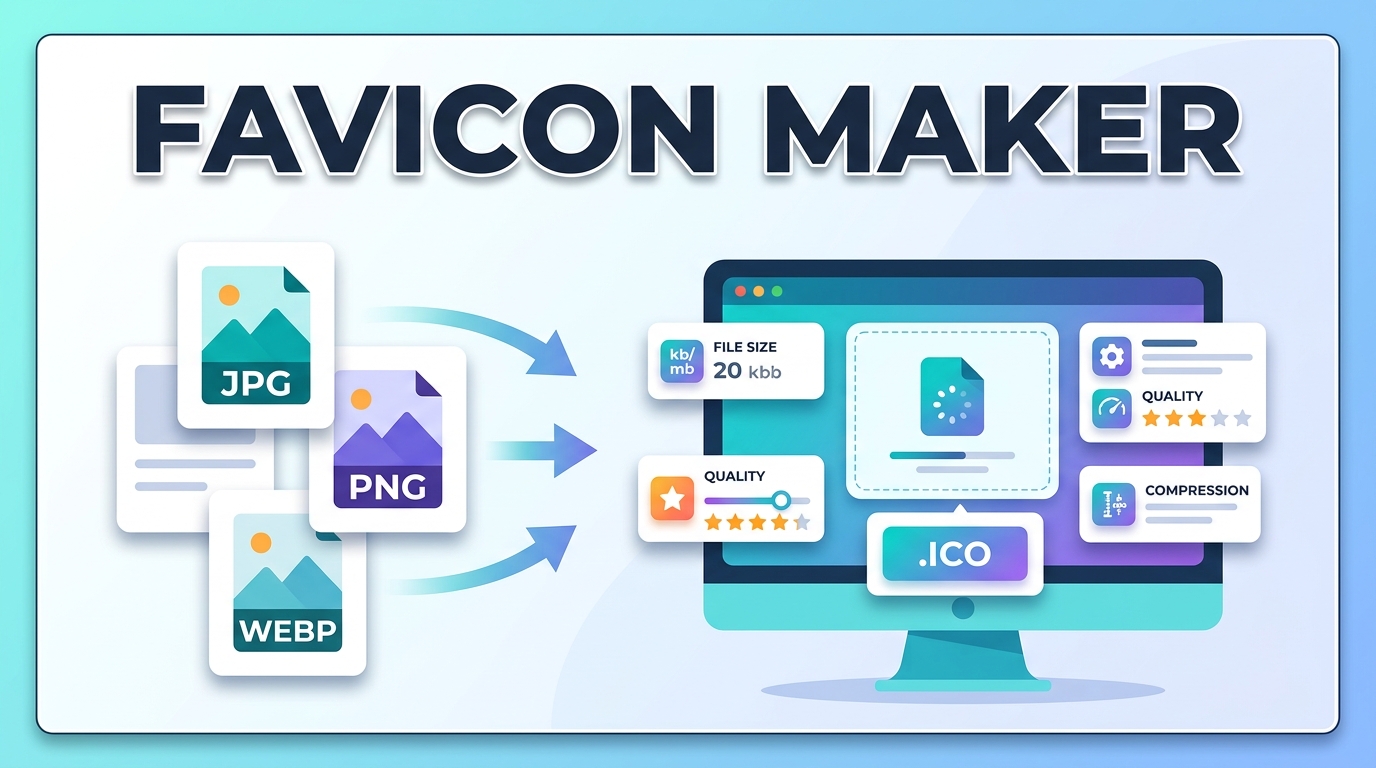
When you open a website in a browser, a small icon appears next to the page title in the tab. This small icon is called a favicon. It helps visitors recognize a website quickly when multiple tabs are open.
Favicons may look simple, but they play an important role in branding and user experience. Most browsers expect favicon files in the ICO format. Because of this, website owners often need to convert an image such as PNG or JPG into an ICO file before adding it to their website.
This guide explains how favicon files work, why ICO format is used, and how you can create a favicon by converting an image into an ICO file.
What Is a Website Favicon
A favicon is a small icon associated with a website. It appears in several places across the browser and helps users identify a site visually.
- Browser tabs
- Bookmark lists
- Browser history
- Mobile browser shortcuts
- Search result previews in some browsers
Even though the icon is small, it becomes part of the site’s identity. Many well-known websites are instantly recognizable from their favicon alone.
Why ICO Format Is Used for Favicons
The ICO format was designed specifically for icons. It allows multiple icon sizes to be stored inside a single file, which makes it ideal for browser compatibility.
Browsers often request different favicon sizes depending on the device and screen resolution.
- 16?16 pixels for browser tabs
- 32?32 pixels for bookmarks
- 48?48 pixels or larger for desktop shortcuts
An ICO file can include several of these sizes together, ensuring the icon displays correctly across different environments.
Benefits of Using a Proper Favicon
Adding a favicon to your website offers several practical advantages.
- Makes the website easier to recognize in browser tabs
- Strengthens brand identity
- Improves visual appearance of bookmarks
- Creates a more professional website presentation
- Helps users quickly find your site among many open tabs
Although small, a favicon contributes to the overall user experience.
Steps to Convert an Image into an ICO Favicon
Creating a favicon usually starts with a simple image such as a logo or icon.
- Select a square image for best results
- Upload the image to an ICO converter
- Choose favicon size options if available
- Convert the image into ICO format
- Download the favicon file
Once the ICO file is created, it can be uploaded to your website.
Recommended Image Size for Favicons
Before converting the image, it helps to prepare the correct dimensions.
- 16?16 pixels for basic browser tabs
- 32?32 pixels for standard displays
- 48?48 pixels for desktop icons
- 64?64 or larger for modern displays
Using a clear and simple design works best because the icon appears at very small sizes.
How to Add the Favicon to Your Website
After creating the ICO file, the final step is adding it to the website.
The favicon file is typically placed in the website’s root directory and referenced in the HTML header.
<link rel="icon" href="/favicon.ico" type="image/x-icon">
Once added, browsers will automatically detect and display the favicon.
Example Tools for Creating Favicons
Several websites demonstrate how favicon conversion works.
- https://favicon.io
- https://realfavicongenerator.net
- https://convertio.co/png-ico
These platforms show how images can be converted into ICO files that browsers can use.
Tips for Designing a Good Favicon
Because favicons appear in very small sizes, simple designs usually perform better.
- Use bold shapes or letters
- Avoid complex details
- Use strong color contrast
- Test the icon at small sizes
A clear and recognizable icon will remain visible even at 16?16 pixels.
Conclusion
Favicons may be small, but they play a meaningful role in how visitors recognize and navigate websites. A properly designed favicon improves branding, enhances user experience, and gives a website a more polished appearance.
By converting an image into the ICO format, website owners can create favicon files that work across different browsers and devices. Once added to the site, the favicon becomes a permanent visual marker that helps users quickly identify the website.
With simple conversion tools available online, creating and adding a favicon takes only a few minutes.
Frequently Asked Questions
What is a favicon?
A favicon is a small icon associated with a website that appears in browser tabs, bookmarks, and other browser interface elements.
Why do websites use ICO format for favicons?
The ICO format supports multiple icon sizes inside a single file, which allows browsers to display the correct size depending on the device.
Can I create a favicon from a PNG image?
Yes. PNG images are commonly converted into ICO files when creating favicons.
Where should the favicon file be placed?
The favicon file is usually placed in the root directory of the website and linked in the HTML header.
What size should a favicon be?
Common sizes include 16?16, 32?32, and 48?48 pixels. Many ICO files contain multiple sizes for better compatibility.