Blog
Convert HEIC Photos to JPG for Windows

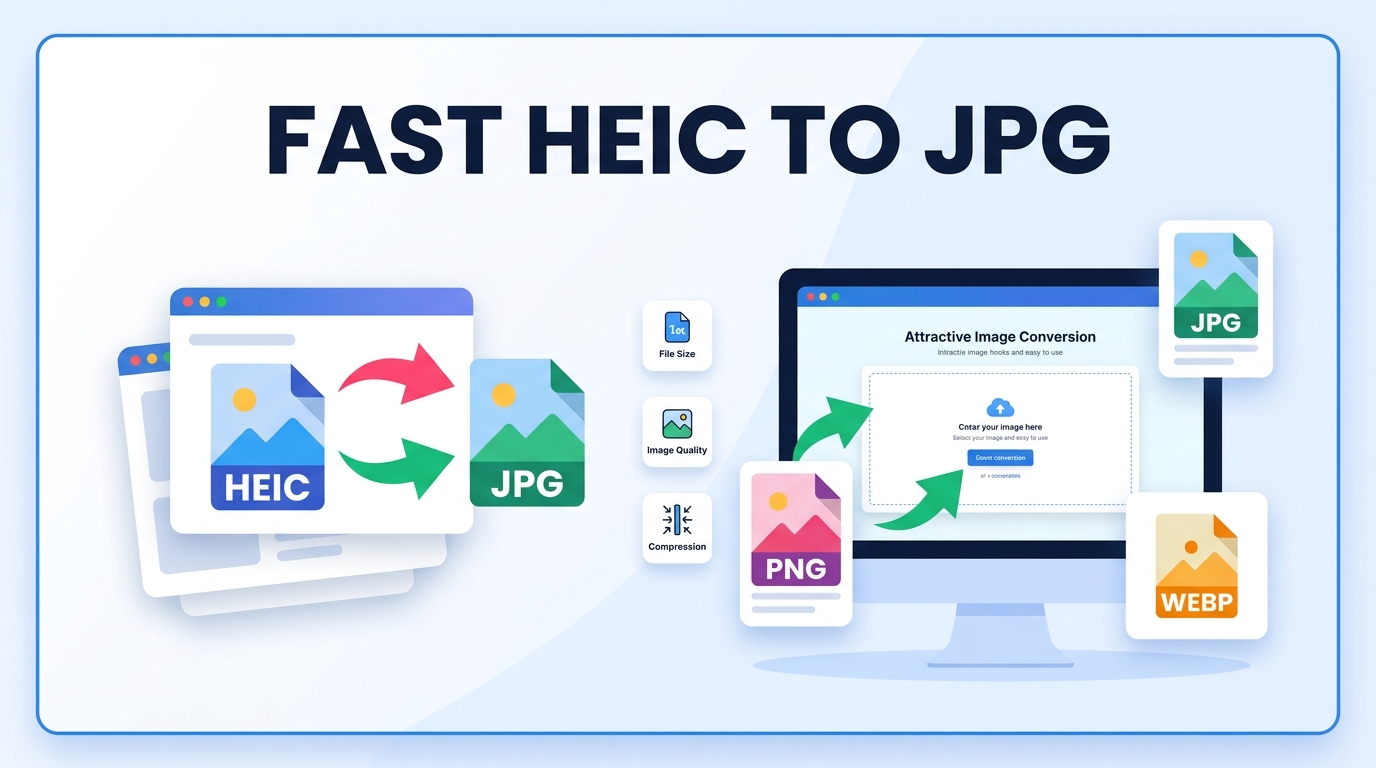
Many people notice this problem when they transfer photos from an iPhone to a Windows computer. The images appear with the HEIC extension, but Windows cannot always open them directly. Instead of viewing the photo normally, the system may show an unsupported format error.
This happens because HEIC is a newer image format used by Apple devices to store high-quality photos with smaller file sizes. While the format works well on iPhones and Macs, it can create compatibility issues on Windows systems.
A simple solution is converting HEIC photos to JPG. JPG is one of the most widely supported image formats, making it easier to open, share, and upload photos across different devices.
Why HEIC Photos Do Not Always Work on Windows
HEIC stands for High Efficiency Image Container. Apple introduced this format to save storage space while maintaining good image quality.
However, many Windows systems do not support HEIC files by default unless additional codecs are installed.
- Windows may not recognize the HEIC file format
- Photos may fail to open in image viewers
- Some editing software cannot read HEIC files
- Uploading HEIC images to websites may fail
Because JPG works on almost every platform, converting HEIC photos to JPG quickly solves these compatibility problems.
Benefits of Converting HEIC Photos to JPG
Switching from HEIC to JPG provides several advantages, especially for users working on Windows computers.
- JPG works on almost every device and operating system
- Images can open in any standard photo viewer
- Uploading photos to websites becomes easier
- Editing images in software becomes more convenient
- Sharing photos through email or messaging apps becomes simpler
For most everyday tasks such as sharing photos or uploading images online, JPG remains the most compatible format.
Common Situations Where HEIC Conversion Is Needed
Many users only discover the HEIC format problem after transferring photos from their phone.
Typical situations include:
- Moving photos from an iPhone to a Windows laptop
- Uploading images to websites that do not support HEIC
- Sending photos through email or messaging apps
- Editing images using Windows photo software
- Printing photos through desktop applications
In these situations, converting the images to JPG avoids compatibility issues.
How to Convert HEIC Photos to JPG
The conversion process is straightforward and usually takes only a few steps.
- Select the HEIC photo you want to convert
- Upload the image to a converter tool
- Choose JPG as the output format
- Start the conversion process
- Download the converted JPG image
Once the file is converted, it can be opened normally on Windows systems.
Alternative Method Using Windows Extensions
Microsoft also provides an extension that allows Windows to read HEIC files.
This extension can be installed from the Microsoft Store.
Reference:
- https://support.microsoft.com/windows/heif-image-extensions
However, converting HEIC images to JPG is still useful when sharing files with others who may not have the extension installed.
Online Tools That Convert HEIC to JPG
Several online tools demonstrate how HEIC conversion works.
- https://heictojpg.com
- https://cloudconvert.com/heic-to-jpg
- https://convertio.co/heic-jpg
These tools show how HEIC images can be converted quickly without installing large software programs.
Things to Check Before Converting Photos
To get the best results when converting HEIC images, a few simple checks can help.
- Ensure the original photo resolution remains unchanged
- Avoid converting the same image repeatedly
- Use reliable conversion tools
- Keep a copy of the original HEIC image if needed
Following these steps helps preserve the original photo quality.
Conclusion
HEIC is an efficient image format used by modern Apple devices, but it can cause compatibility problems on Windows computers. When a Windows system cannot open HEIC photos, converting them to JPG provides a quick and reliable solution.
JPG images work across almost all devices, browsers, and software programs. Converting HEIC files to JPG makes it easier to view, edit, upload, and share photos without worrying about format support.
For Windows users transferring photos from iPhones, this simple conversion step can prevent many common file compatibility issues.
Frequently Asked Questions
What is a HEIC photo?
HEIC is a modern image format used by Apple devices that stores high-quality photos with smaller file sizes.
Why can’t Windows open HEIC photos?
Some Windows systems do not include built-in support for HEIC files unless an extension is installed.
Does converting HEIC to JPG reduce image quality?
In most cases the difference is minimal, especially when the conversion uses high-quality settings.
Can I convert multiple HEIC photos at once?
Yes. Many converters allow batch conversion so several images can be converted together.
Is JPG better than HEIC?
JPG is more widely supported across devices and software, which makes it easier for sharing and compatibility.